
Imagine, for a moment, that you are moving apartments. You have hired movers. Good movers — professional, efficient, with a truck and dollies and those little furniture blankets that cost more than your actual furniture. They arrive at 8 a.m., and by 2 p.m. everything you own is in the new place.
And it is everything. The movers were thorough. They took the couch, the dishes, the clothes, the good whiskey and the bad whiskey, the guitar you haven’t played since 2017, the treadmill that functions primarily as a clothes rack, the box of cables you cannot identify but are afraid to throw away, the tax documents from 2009, the birthday card from an ex that you should probably have discarded years ago.
You are, technically speaking, fully moved in. Nothing was lost. The movers get five stars.
And yet. Standing in your new apartment, surrounded by the complete and faithful reproduction of your old life, you feel something that moving companies do not advertise: the creeping suspicion that you have moved all your problems with you, and none of your solutions.
This is what Apple‘s Migration Assistant does to a developer’s computer. And this is a story about what happens next.
A note on how to read this:
This piece has two parts. The first is for anyone who has ever moved to a new computer and felt vaguely unsettled by the experience — no terminal required. The second is a practical field guide for developers actively dealing with an Intel-to-ARM Mac migration, with the specific commands to fix it. If you are in crisis and your build is broken, skip ahead to The migration, done properly. If you have time to read, start at the beginning.
The promise
Migration Assistant is, on paper, a miracle. You take your old Mac — in this case, an Intel machine, running x86_64 binaries, doing everything the old way — and your new Mac, an M4 MacBook Air with Apple Silicon inside, and you let Apple’s software do the rest. Plug them together, wait a few hours, and your new computer wakes up knowing everything your old one knew: your browser tabs, your wallpaper, your fonts, your three competing password managers, your Terminal history with all its abandoned experiments and half-finished ideas.
For most people, Migration Assistant is genuinely excellent. For most people, computers are appliances — devices for doing email and watching videos and occasionally doing something with a spreadsheet. For these people, Migration Assistant delivers on its promise completely. The move is seamless. The new machine feels like the old machine, but faster.
For developers, the situation is more complicated. For developers, Migration Assistant is like those movers who take everything, except that everything includes the structural peculiarities of your old building — the load-bearing walls, the peculiar plumbing, the specific electrical quirks that your old apartment had that made your kitchen appliances run at exactly the right voltage. They packed all of that too, and installed it in your new apartment, and now your appliances run slightly wrong, and you won’t quite know why until something breaks at an inconvenient moment.
The specific wrong thing, in the case of an Intel-to-ARM Mac migration, has a name: Rosetta 2.
Rosetta: The polite translator who is making everyone slower
Here is the thing about Apple Silicon chips — the M1, M2, M3, M4, and their various suffixed relatives — that the marketing materials will tell you: they are extraordinarily fast. Faster than Intel. Faster than most laptops. Fast enough that Apple has used them to embarrass the PC industry repeatedly for four years running.
Here is the thing that the marketing materials will not lead with: they speak a different language.
Intel chips speak x86_64. This is an instruction set — a vocabulary of operations that the chip understands. It was designed in the 1970s, extended repeatedly, and has accumulated the kind of legacy complexity that suggests it was designed by committee with a mandate to never break anything ever. It works. Billions of devices run it. Enormous amounts of software have been compiled to run on it.
ARM chips speak ARM. This is a different instruction set — leaner, more modern, and, in Apple’s implementation, faster and more power-efficient than x86 at equivalent tasks. Your iPhone has run on ARM chips for years. Your Apple Watch runs on ARM. The new Macs run on ARM.
So: your new M4 MacBook Air speaks ARM. Your old software speaks x86_64. This is the kind of problem that, in a human context, would require either a translator or a very patient relationship.
Apple provides the translator. It’s called Rosetta 2, named after the Rosetta Stone — the ancient Egyptian artifact that let scholars decode hieroglyphics by comparing them to Greek text they could already read. Rosetta 2 intercepts Intel binaries and translates them, in real time, into ARM instructions. It does this remarkably well. Software runs. Users are happy. Almost nobody notices.
But Rosetta 2 has a cost. It adds latency. It consumes memory. It means that your developer tools — the ones you use every day, the ones that are supposed to be fast — are running through an interpreter, like a conversation conducted through a translator who is very good but still one beat behind the actual speakers.
And when Migration Assistant moves your entire Intel developer environment to your new ARM Mac, it does not flag any of this. It just moves everything, and leaves Rosetta quietly running in the background, and your machine is fast, but not as fast as it should be, and you won’t know why until you look.
The discovery: A dramatic one-line diagnosis
The moment of revelation is, as technical moments of revelation often are, anticlimactic. You open your terminal and type:
| uname -m |
Two seconds pass. The computer responds:
| x86_64 |
This is wrong. You are on an ARM machine. The shell should say arm64. Instead, it says x86_64, which means your entire shell — the environment from which you run every command, install every tool, launch every server — is running under Rosetta. You are not running on your computer. You are running on a simulation of a different computer, which is itself running on your computer.
It is turtles all the way down, except the turtles are x86_64 and should really be arm64 turtles.
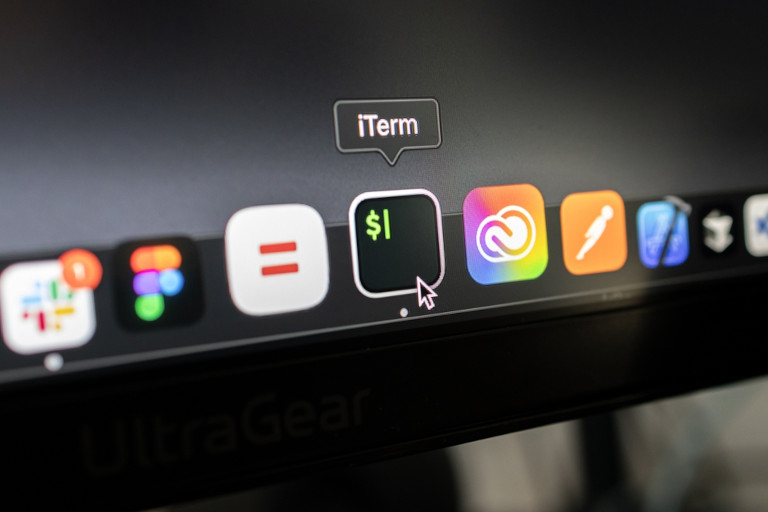
The culprit, it turns out, is iTerm2 — the terminal emulator that most Mac developers use. Migration Assistant, faithful to its mandate, moved it over exactly as it was. And it was, on the Intel machine, configured to open via Rosetta. One checkbox, buried in the “Get Info” panel of the app, was checked. And because it was checked, every shell that opened from iTerm2 ran in x86 mode. Every tool installed from that shell was x86. Every binary pulled from every package manager was Intel. The entire developer environment was a ghost.
The audit: Taking stock of your digital ghosts
Once you know to look, the audit is straightforward and quietly horrifying. Here is what a typical post-migration Intel developer environment looks like when examined honestly:
| Component | What Migration Brought Over | What It Should Be |
| iTerm2 | Running via Rosetta | Native ARM |
| Homebrew | Installed at /usr/local | Should be /opt/homebrew |
| 70+ brew packages | All x86_64 | All arm64 |
| Node.js | x86_64 via NVM | arm64 via NVM |
| Ruby | x86_64 | arm64 |
| Playwright browsers | Chrome x64 binary | Chrome arm64 binary |
| Most GUI apps | Pure x86_64 | Universal or ARM |
Seventy packages. All x86. All running through Rosetta. All doing their work at a slight but measurable disadvantage, like a team of excellent employees who have been asked to conduct all their business in a second language.
The question is not whether to fix this. The question is how to fix it cleanly, without breaking everything, without reinstalling seventy packages you don’t need, and without losing the tools that actually matter.
The migration, done properly: A field guide
The correct approach is not to replicate your old environment. The correct approach is to treat this migration as an opportunity to burn the overgrowth and plant something intentional. Here is how it goes, in order.
Step 1: Fix the root cause first
Everything flows from the terminal. If your terminal is running under Rosetta, every command you run, every tool you install, every binary you pull from the internet will be x86 by default. Fix this before anything else.
1. Quit iTerm2 completely (Cmd+Q)
2. Open Finder → Applications → right-click iTerm → Get Info
3. Uncheck “Open using Rosetta”
4. Reopen iTerm2 and verify:
| uname -m # Should now say: arm64 |
Step 2: Fix node.js via NVM
NVM — the Node Version Manager — is architecture-aware, but only if the shell asking it for binaries is native ARM. With iTerm2 fixed, reinstall your Node version properly:
| nvm install 22 –reinstall-packages-from=currentnvm alias default 22nvm use 22 # Verify — must say arm64, not x86_64file $(which node) |
Step 3: Install ARM Homebrew and remove the Intel ghost
ARM Homebrew lives at /opt/homebrew. Intel Homebrew lives at /usr/local. They are not the same program. You need one and not the other.
First, install the ARM version:
| /bin/bash -c “$(curl -fsSL https://raw.githubusercontent.com/Homebrew/install/HEAD/install.sh)” # Add to your shell profileecho ‘eval “$(/opt/homebrew/bin/brew shellenv zsh)”‘ >> ~/.zprofileeval “$(/opt/homebrew/bin/brew shellenv zsh)” # Verifybrew –prefix # Should say: /opt/homebrew |
Then export your Intel package list and destroy the Intel installation:
| # Export what you had (for reference, not blind reinstall)/usr/local/bin/brew list –formula > ~/brew-packages.txt # Obliterate the Intel installation/usr/local/bin/brew uninstall –force $(/usr/local/bin/brew list –formula)sudo rm -rf /usr/local/Homebrewsudo rm -rf /usr/local/Cellarsudo rm -rf /usr/local/Caskroomsudo rm -rf /usr/local/bin/brew |
Step 4: Reinstall only what you actually need
This is the moment of truth. You had seventy packages. You probably need twelve. Review the exported list and install deliberately:
| # MongoDB (requires tapping their repo first)brew tap mongodb/brewbrew install mongodb-community mongosh # Core development stackbrew install postgresql@16 gh jq shellcheck openssl@3 [email protected] ruby ffmpeg # Add to PATHecho ‘export PATH=”/opt/homebrew/opt/postgresql@16/bin:$PATH”‘ >> ~/.zshrcecho ‘export PATH=”/opt/homebrew/opt/ruby/bin:$PATH”‘ >> ~/.zshrcsource ~/.zshrc # Start PostgreSQLbrew services start postgresql@16 |
Step 5: Reinstall Claude Code
With the ARM Node active, any globally installed npm tools need to be reinstalled so they run natively. This applies to whatever you use — Claude Code, ts-node, serve, nodemon, or any other global binary. The pattern is the same for all of them:
| npm install -g @anthropic-ai/claude-code # The binary will be a Node script — that’s normal# What matters is the Node runtime underneath is arm64 |
This is a good moment to audit your global npm packages the same way you audited your Homebrew packages. Run npm list -g –depth=0 and reinstall only what you actually use.
Step 6: The application audit
Run this to find every pure x86 application — the ones with no ARM slice at all:
| for app in /Applications/*.app; do result=$(file “$app/Contents/MacOS/”* 2>/dev/null) if echo “$result” | grep -q “x86_64” && ! echo “$result” | grep -q “arm64”; then echo “❌ $(basename $app)” fidone |
Universal binaries (containing both architectures) are fine — macOS uses the ARM slice automatically. You only need to replace pure x86_64 apps. Delete and reinstall them:
| sudo rm -rf /Applications/Docker.appsudo rm -rf /Applications/Cursor.appsudo rm -rf /Applications/zoom.us.appsudo rm -rf /Applications/Spotify.app brew install –cask docker cursor zoom spotify vlc google-drive 1password |
Note: Docker leaves binary artifacts in /usr/local/bin. If brew complains, clear them:
| sudo rm -f /usr/local/bin/dockersudo rm -f /usr/local/bin/docker-composesudo rm -f /usr/local/bin/kubectl.dockersudo rm -f /usr/local/bin/hub-toolsudo rm -rf /usr/local/cli-pluginsbrew install –cask docker |
Step 7: Fix Playwright browsers
Playwright caches its browser binaries by architecture. The old x64 Chrome needs replacing with the arm64 version. And if you get a stale npx cache pointing to the old binary, clear that too:
| # Install the ARM browsernpx playwright install chromium # If you see errors about x64 paths, clear the npx cache firstrm -rf ~/.npm/_npxnpx playwright install chromium |
Step 8: The final sweep
Run the audit script one last time. A clean migration returns silence:
| for app in /Applications/*.app; do result=$(file “$app/Contents/MacOS/”* 2>/dev/null) if echo “$result” | grep -q “x86_64” && ! echo “$result” | grep -q “arm64”; then echo “❌ $(basename $app)” fidone # Verify core toolsuname -m # arm64brew –prefix # /opt/homebrewfile $(which node) # arm64 |
What this is really about
There is a temptation, when writing about developer tools, to treat the subject as purely technical. Here are the commands. Here are the flags. Here is the correct sequence of operations. Copy, paste, done.
But the experience of this migration — the discovery of seventy x86 ghosts, the archaeology of accumulated packages, the slow realization that your home directory is a museum of your past decisions — is not a technical experience. It is a deeply human one.
Computing has always been sedimentary. Every decision made in the 1970s about how Intel chips should work is still, in some form, running in the world today. x86 won the PC era not because it was the best architecture — there were better ones — but because IBM chose Intel, and IBM’s choice became an industry standard, and industry standards become infrastructure, and infrastructure becomes invisible, and invisible things are very hard to replace.
Apple’s bet on ARM — the same architecture that runs your phone, your tablet, your watch — is a bet that the era of x86 dominance is over. And by most measures, they are winning that bet. The M4 MacBook Air is faster than laptops that cost three times as much and weigh twice as much. It runs all day on a single charge. It does this because ARM is, at the physics level, more efficient than the 40-year-old instruction set it is replacing.
But efficiency is not the whole story. The whole story includes the seventy packages you accumulated over years of I might need this someday. It includes the Homebrew installation at /usr/local that was put there by a different version of you, on a different architecture, with different assumptions. It includes the iTerm2 checkbox, so small it barely registers, that was making everything run slower without announcing itself.
Migration Assistant is a mirror. It shows you your digital life as it actually is, not as you imagine it to be. And what it shows, usually, is that you have been carrying more than you knew.
The fix — the real fix, not just the technical one — is to use the migration as an occasion for honesty. What do you actually need? What were you running out of habit? What can you leave behind?
Most of the seventy packages, it turns out, were not needed. A clean ARM install of a dozen well-chosen tools does everything the seventy-package x86 environment did, and does it faster, and does it without Rosetta whispering translations in the background.
There is something almost philosophical about this. The machines have changed. The architecture has changed. The right response is not to drag the old world into the new one wholesale. The right response is to take what matters, leave what doesn’t, and let the new machine be what it actually is: something genuinely faster, genuinely leaner, genuinely different from what came before.
A final word on directories
One last thing, since we’re here: your home directory is not a project folder. This seems obvious. It is not, apparently, obvious.
After years of development work — especially work that started on the command line, before the habits of modern project organization set in — it is common to find a home directory that looks like a junk drawer. Project folders next to configuration files next to mystery text documents from 2019 next to a PDF of something you were going to read but didn’t. All of it in ~, all of it technically accessible, none of it organized.
The migration is a good time to fix this. Your projects belong in ~/Documents/Projects/. Your system tools — your dotfiles, your .claude/ directory, your NVM installation — belong in ~. The rule is simple: if a program put it there, leave it. If you put it there as a project, move it.
And when you run Claude Code in the future — which is to say, when you run it on your clean ARM machine, with your native ARM Node, with your /opt/homebrew installation humming along at full speed — you run it from inside the project folder. Not from home. Not from Documents. From inside the specific project, so that it has context, so that it reads the right CLAUDE.md, so that the invisible system that helps you work knows, with precision, what you are working on.
The machine is fast now. The architecture is right. The directories are clean.
Run uname -m. It says arm64.
That’s the whole story.
Follow us on X, Facebook, or Pinterest
